2. Device Details
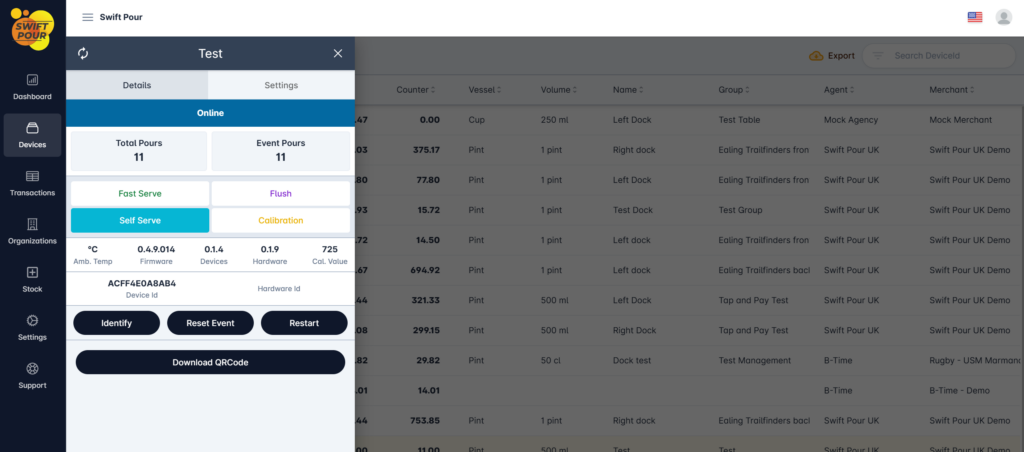
Clicking on a device from the devices grid will slide out the details and provide actions items for your to manage the device. You are able to get detailed information, change the pouring mode, reset counters, restart the device and update pour related information.
Details Tab
Below is a glossary of the items displayed:
- Total Pours
- This is the Docks odometer and cannot be reset
- Event Pours
- This is a general event counter, which can be reset using the “Reset Event” button.
- Not necessary, as all pour transactions are recorded.
- Pouring Modes
- Detailed information can be found under the Hardware Articles, below is a summary.
- Fast Serve
- Dock button pulses white.
- Used by bar staff to pour continuously to the calibrated pour volume when pushing the button.
- Calibration is required to ensure the volume is correct, this is only required once, per a product being poured.
- Self Serve
- Dock button pulses a light blue.
- Used in conjunction with a credit card terminal which needs to be associated to the dock.
- Calibration is required to ensure the volume is correct, this is only required once, per a product being poured.
- Flush
- Dock button pulses a light purple.
- Used to flush the system as per the recommendations under the Hardware Articles.
- Calibration
- Dock button pulses yellow.
- Instruction can be found under the Hardware Articles.
- Fast Serve
- Detailed information can be found under the Hardware Articles, below is a summary.
- Amb. Temp
- Ambient Temperature inside the dock.
- Firmware Version
- The electronic software version on the electronics inside the Device.
- From time to time, this will change when a new version is released, along with it bringing new features.
- Updates are scheduled and are done at a convenient time.
- Please note a stable internet connection is required and the device must be on and in Fast Serve mode.
- Do Not Touch the device while updates are being downloaded.
- Device Version
- Hardware Version
- Cal. Volume
- This is the computed calibration volume counter. This does not represent the actual volume.
Action Buttons
- Identify
- This is used to identity the dock that you have selected, by flashing the pour button white.
- Useful when there are many docks in-front of you and you would like to know which one you are working with.
- Reset Event
- Used to reset the event counter.
- Restart
- Used to restart the device remotely.
- Download QR Code
- QR Code can be printed and used to select the device when scanned.
- Used in some cases for self serve.
Settings Tab
Below are all the settings related to the pour transaction. You have the ability to choose a group location, name the device to something appropriate for your identification, update product being poured and define the vessel size and price of each transaction.
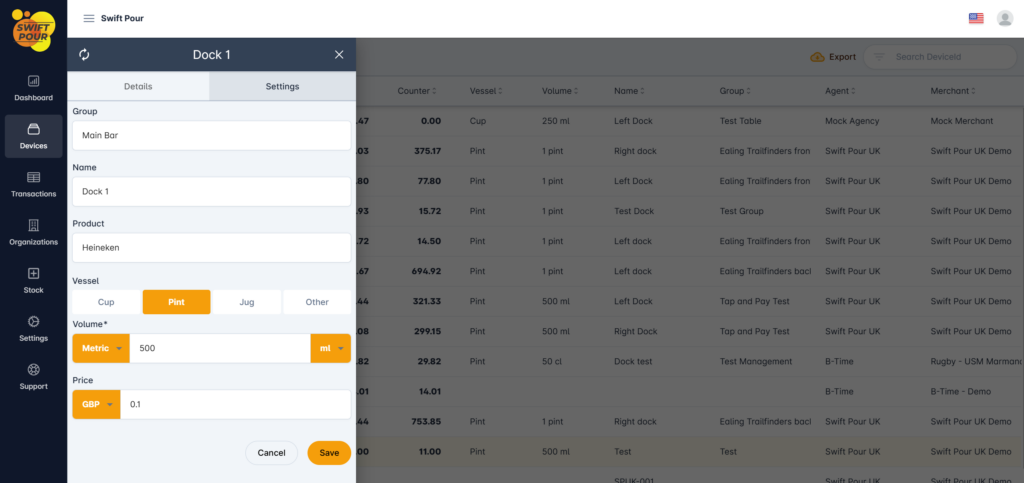
- Group
- Used to group the devices for reporting purposes
- Helps identifying a devices location
- Name
- Ability to name the device
- Product
- Select the product being poured
- Vessel
- Cup – 250ml cup
- Pint – Event & Triton Cup
- Jug – Used with the jug pouring attachment
- Other – any other vessel being poured into.
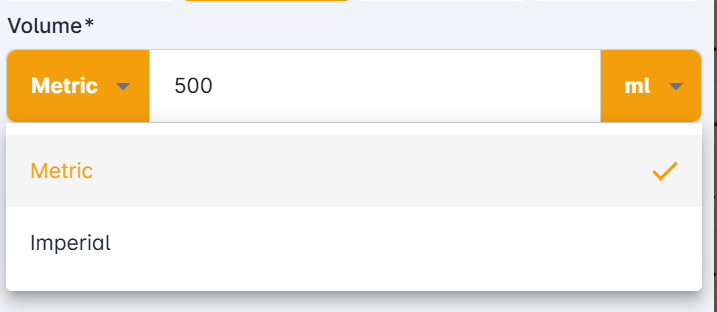
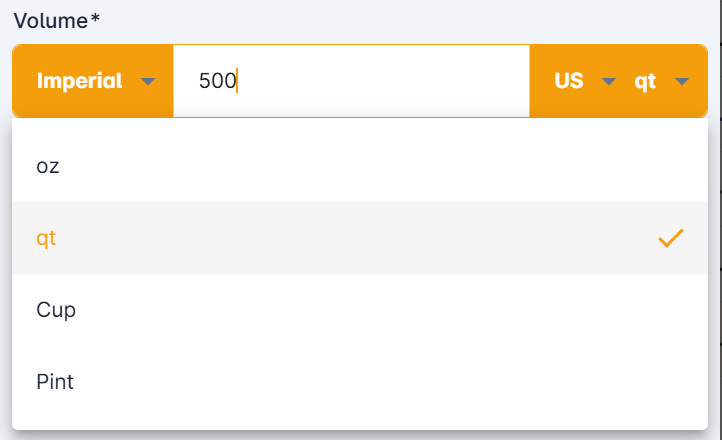
- Volume
- Can choose between metric or imperial
- US or UK Imperial can be selected
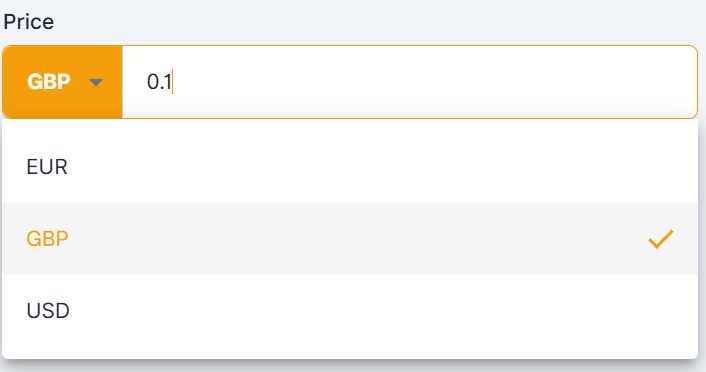
- Price
- You can specify the currency.
Please note the above information is critical for your reporting to be accurate.