4. Settings
You are able to manage your organization and invite other people to access your pouring solution
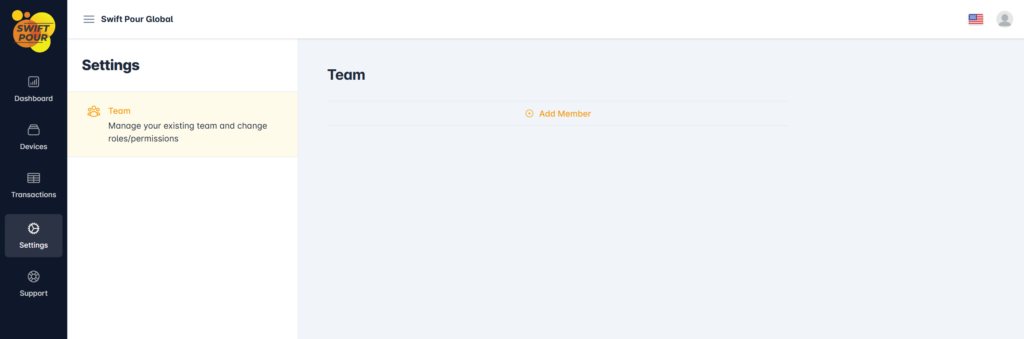
Add Members
By clicking on the Add Member button, you are presented with the add member dialog window
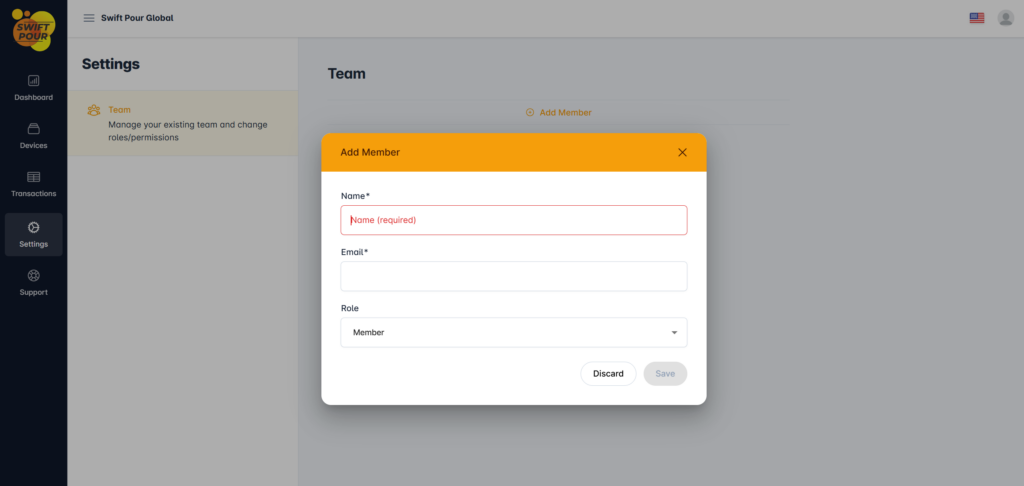
All fields are required, and the email address will be used as the new users login details.
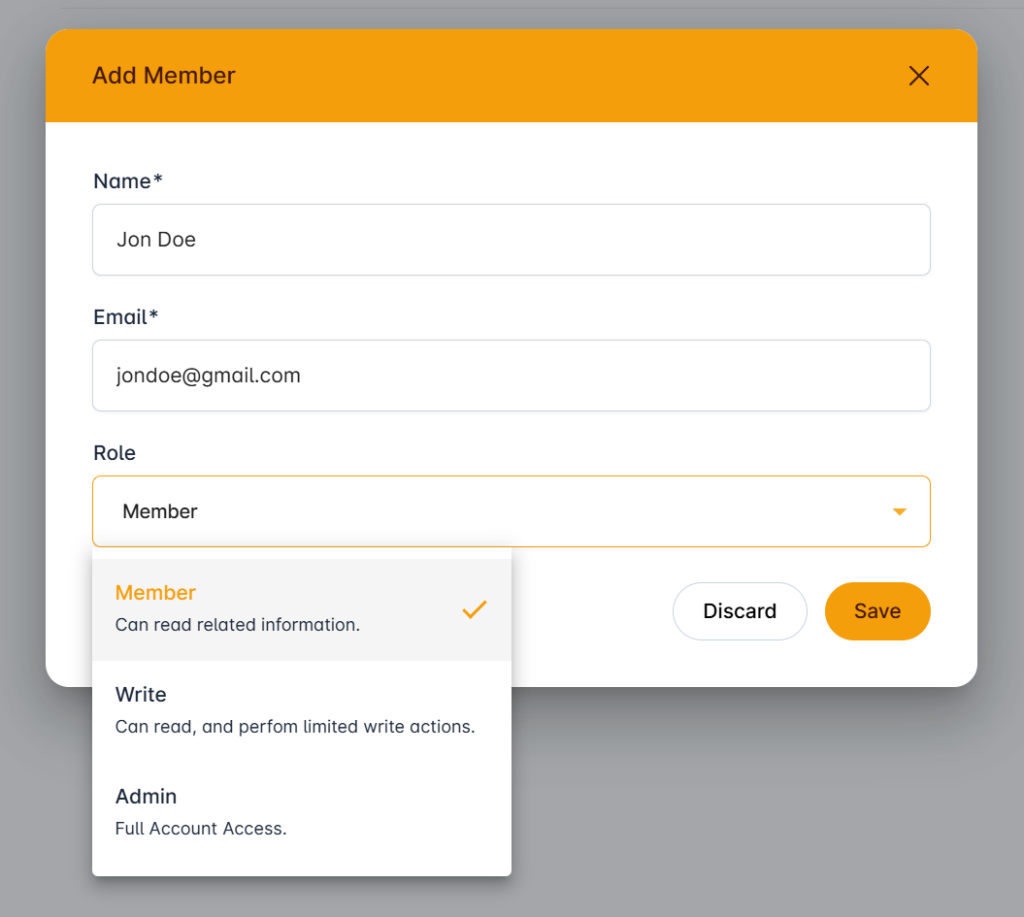
There are 3 roles to choose from. Each having specific rights to operations that can be done against the organization.
- Member –
- Minimal rights, they are just able to view content.
- Write
- limited write permissions, they cannot invite new members
- Admin
- Full rights to the organization profile.
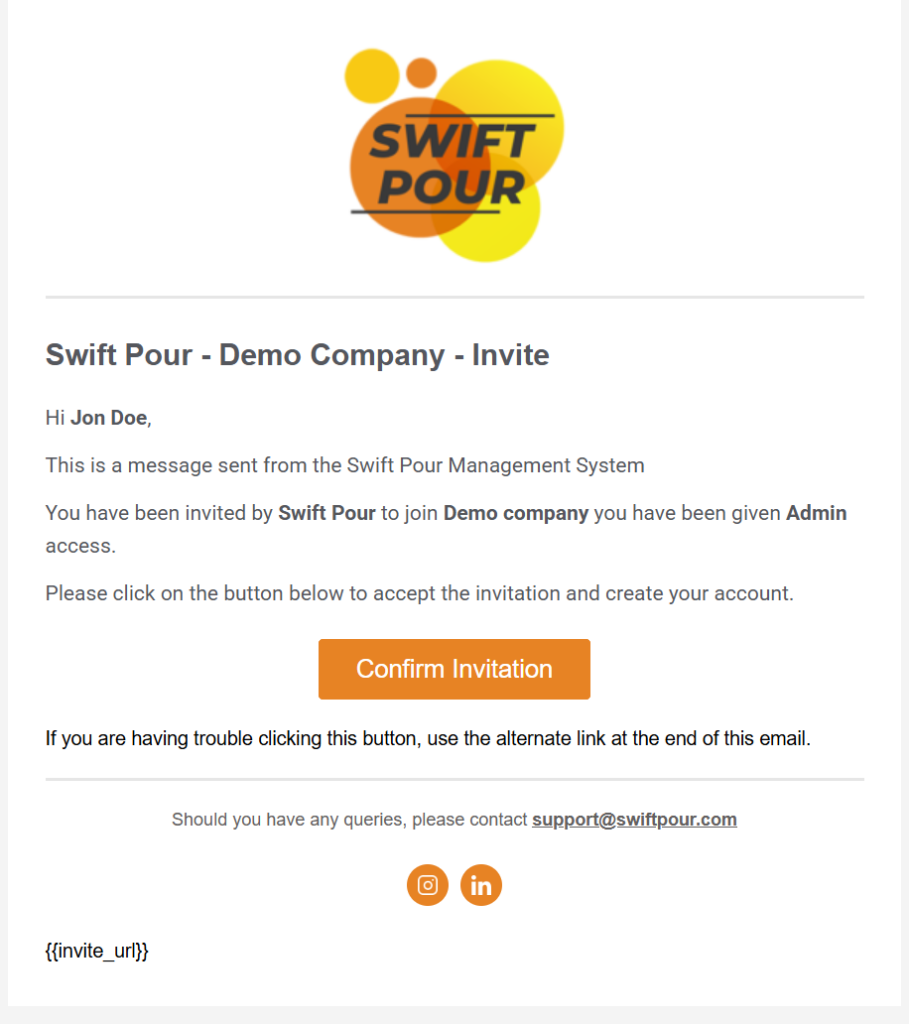
After clicking send, and invitation email is sent through to the new users email address. Please ensure that the email has not gone into the Junk Mail folder.
N.B. The notification will expire after 48 hours. You will be able to resend the invite if expired or the user has not received their email. Email Addresses can’t be changed, you will need to send a new invite to the new email address.
They will be required to click on the button or copy and paste the link into a browser address bar.
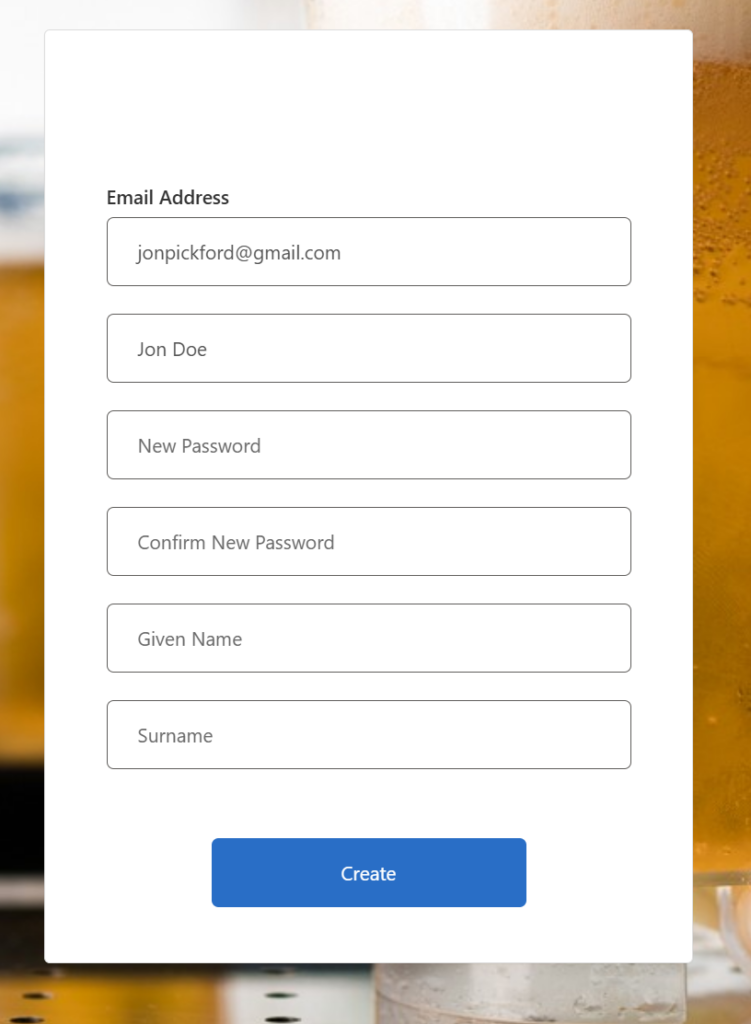
Once the page has loaded you will be presented with the user profile capture form, giving the user to capture their personal details and creating their desired password.
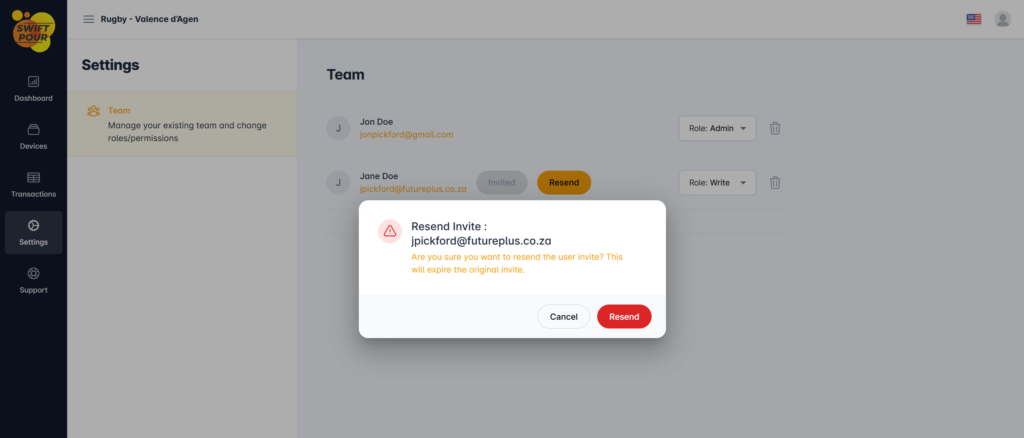
Resend Invitation
As mentioned, you are able to resend the invitation, sometimes this is necessary, if the user’s invite expired or they have not received their email. The resend functionality will only be displayed after 10 minutes from the initial send.
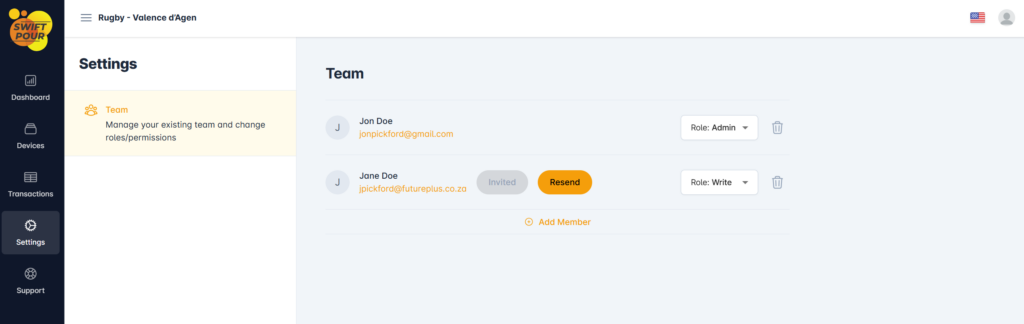
Upon clicking resend, you are asked to confirm the transaction. Upon confirmation the user will be re-sent their invite.